To display received XMR, a wallet has to scan the block containing the payment. First a node obtains blockchain data, then the wallet searches it for incoming transfers, and a detected payment needs confirmations before it becomes spendable. An empty balance during synchronization calls for different actions depending on which stage is still waiting.
 Eugen Voyager

Contents
Find the stage that is waiting
In Monero GUI, look at the node and wallet synchronization status separately. The node stores and verifies blocks. The wallet reads blockchain data with its private view key to recognize incoming outputs addressed to it. A remote node saves you from downloading the entire chain to your device, but a regular wallet still performs its own scan.
- The node is catching up. The wallet cannot scan blocks that its node does not yet have. Wait for your local node to synchronize, or connect to a remote node you have chosen.
- The node is ready, but the wallet is scanning. Let the wallet reach the payment's block. Changing nodes does not remove this work.
- The payment is visible, but the available balance is smaller. Look at its confirmations and spendable status. Waiting for confirmations is a different stage from finding an incoming transfer that has not appeared at all.
The Monero ecosystem guide covers private payments and the available applications. Here we focus on the actions in Monero GUI when a particular transfer is missing.
Local node or remote node
Your own node downloads and verifies the chain on your hardware. A remote node supplies blockchain data over the network. With a regular remote-node connection, your keys remain on your device and your wallet searches for its payments locally. The node operator can observe network requests and associate transaction submission with an IP address; your own node gives you more control over that exchange.
Configuring a custom node in the official Monero GUI requires Advanced mode. You can see the current mode under Settings → Info → Wallet mode. To change it, close the wallet through Settings → Wallet → Close this wallet, choose Change wallet mode on the welcome screen, and select Advanced mode. Then open your wallet file again.
- Go to Settings → Node and select Remote Node.
- Enter the chosen node's address in Address and its port separately in Port. If the operator provided login credentials, use Daemon username and Daemon password.
- Click Connect. Once connected, watch whether the wallet's synchronization progresses.
This connection does not require your recovery phrase or private spend key. Use your own node or an operator you trust with network information; a random public node is not trustworthy simply because it responds quickly.
Synced wallet, missing payment
First match the recipient address and selected wallet account against the sending record. For an exchange withdrawal, find the blockchain transaction ID: an internal withdrawal request marked complete and a transfer recorded on-chain are separate stages.
If you recently restored the wallet and its balance is incomplete, check the Restore height. This is the block where the wallet starts looking for incoming payments. A starting point after the first receipt skips earlier transfers. Starting earlier takes more time, but includes those blocks.
In Monero GUI, open Settings → Info and click (Change) beside Wallet restore height. Enter the block of the first receipt or an earlier height. You can also use the first receipt's date, or an earlier date, in YYYY-MM-DD format. If you do not know the exact date, start before the period when the wallet was first used.
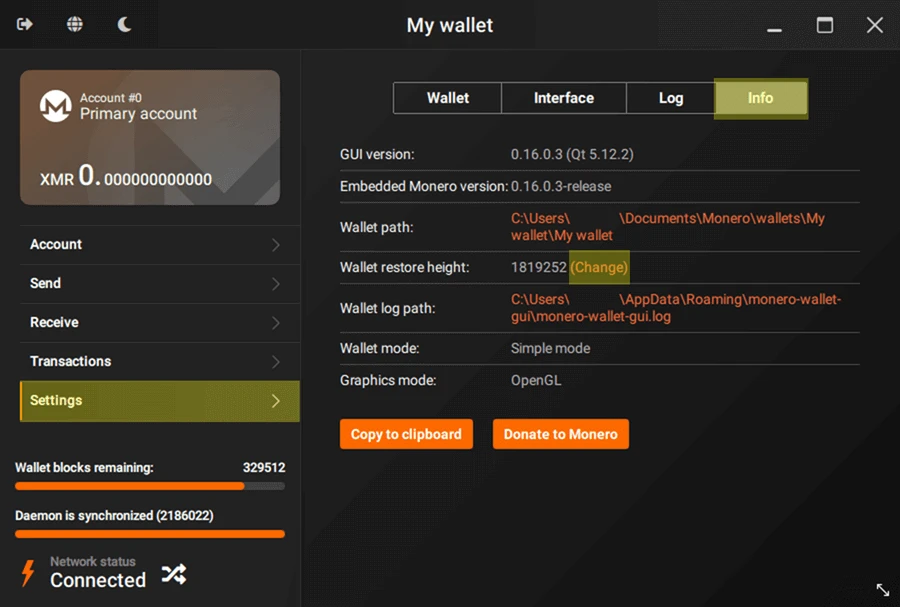

When you confirm, GUI warns that the current cache will lose stored recipient addresses, transaction keys and descriptions. It saves the previous cache as a backup file in the wallet's directory; preserve the records you need and your existing backup before proceeding. The wallet then scans again from the chosen height. If it uses a local node that is still synchronizing, that node must finish first.
The process is complete when the wallet has caught up and found the expected incoming payments. If a particular payment is still missing after scanning from a date that is definitely early enough, investigate that transfer instead of repeatedly changing the height.
What a view-only wallet can see
A view-only wallet finds incoming transfers using the wallet address and private view key. It does not have the private spend key, so it cannot sign a transfer itself. This makes it useful for monitoring incoming payments on a separate device.
After outgoing transfers, the view key alone is insufficient to calculate the correct available balance. The Monero guide explains that the wallet also needs key images: data that lets it mark outputs as spent. They are imported from a wallet with the corresponding spending information. Repeating the blockchain scan does not generate those missing records.
This is also different from a light wallet whose server scans on the owner's behalf. Giving that server a private view key reveals incoming payments to it. An ordinary Monero GUI connection to a remote node does not require handing over a view key for scanning.
Check one particular payment
A public Monero transaction lookup does not show how much a particular address received. To verify one payment, the sender can provide its transaction ID, recipient address and transaction key. This is the key for that particular transfer; verification does not need the wallet's private spend key.
In Monero GUI, open Advanced → Prove/Check and enter those details in the checking section. With up-to-date blockchain data, it displays the amount sent to the specified address and the transaction's confirmations. The sender can obtain the details from the outgoing payment's history entry; the official payment-verification guide shows the process.
This separates a recorded payment that the receiving wallet has not yet found from sending details that do not establish payment to the chosen address. Verifying a single purchase does not require sharing the view key for the whole wallet.
EV
Eugen Voyager
Crypto analyst and blockchain developer. In the industry since 2018. Creator of Telochain blockchain, GameFi project Telomeme, and Yieldo platform. Author of Telegram channel @tonsdot.
How we collect and check data — Yieldo's methodology.
How we publish, date and correct material — editorial policy.